

Odoo App · Point of Sale
Create Multi POS Orders
Create POS orders for multiple customers at once — consolidated payment, individual receipts.

Overview
Creating POS orders one customer at a time is slow when the same product is going out to many people at once — staff parties, corporate gift orders, restaurant group bookings, repeat retail deliveries. Standard Odoo POS does not have a bulk-create flow, so cashiers cycle through the same screen for every customer.
Create Multi POS Orders, built by TechUltra Solutions, adds a single Create Multi Order screen. Cashiers pick the POS shop, the payment method, the customers (with checkboxes for multi-select), and the products — then submit. The module creates one order per customer, with its own receipt number, in a single round trip.
Inventory updates in real time so stock counts stay accurate, journal entries can be posted per order for accounting, and the module works in both Community and Enterprise. The fit is broad: retail stores running bulk gift orders, restaurants splitting group bookings, B2B counters processing recurring repeat orders.
Key features
-
Bulk POS order creation
Easily create multiple POS orders in a single session, eliminating the need to process each order individually — the same products, dispatched to many customers, in one workflow.
-
Consolidated payment processing
Consolidate payments for a group of orders, simplifying the payment process for customers who are part of a single transaction — useful for split-cheque dining or corporate gift batches.
-
Per-customer receipts
Provide customers with receipts for their orders through printed receipts, with a unique receipt number generated per customer so each one has its own audit trail.
-
Multi-customer selection
Select one or many customers at once using checkboxes in the Create Multi Order form — the module loops through and creates one POS order per selected customer.
-
Real-time inventory updates
Real-time inventory updates help you keep track of stock levels, preventing overstock or stockouts — every order in the batch deducts from the same live stock count.
-
Journal entry posting
After creating the orders you can post a journal entry for each one, so accounting stays in sync with POS without a separate end-of-day reconciliation step.
-
Centralised interface reduces errors
With a centralised interface for order creation, you can minimise data-entry errors and ensure that orders are accurate — one form replaces dozens of individual POS sessions.
-
Community and Enterprise
Available in both Odoo Enterprise and Community editions — no edition lock-in for the bulk-order workflow.
-
Industry versatility
Suitable for a wide range of businesses, from retail stores to restaurants, enabling efficient POS order processing for diverse industries.
Create Multi POS Orders in Odoo
Every screen, in the order you meet it — configuration first, then the module in use.
Technical details
Specification
- Publisher
- TechUltra Solutions Private Limited
- Technical name
- tus_create_multi_pos_orders
- Odoo versions
- 16.0, 17.0, 20.0
- Edition
- Community and Enterprise
- Lines of code
- 180
- License
- Odoo Proprietary License v1.0 (OPL-1)
- Price
- $29.70 (one-time)
Deployment
- Odoo Online
- Odoo.sh
- On-premise
Odoo dependencies
- Point of Sale
- Discuss
- Inventory
- Invoicing
Support
90 days of bug-fix support, Monday to Friday (10:00–19:00 IST). Raise a ticket at support@techultra.in.
Setup & configuration
From install to first call — here is the path.
- 1
Install the module
In Odoo, open Apps, remove the Apps filter, search for “Create Multi POS Orders”, and click Install. Point of Sale, Inventory, and Invoicing must already be installed.
- 2
Enable the user permission
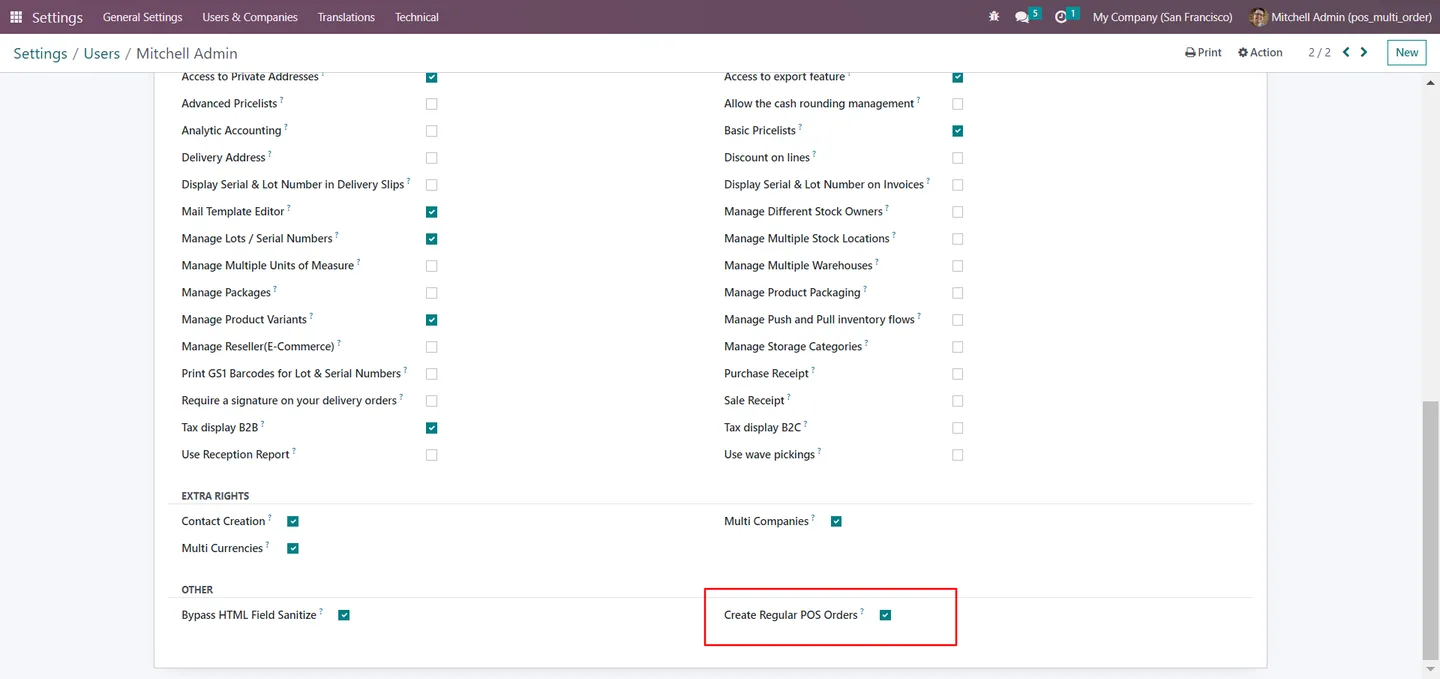
Go to Settings → Users, open the user record, and tick Create Regular POS orders. Only users with this permission see the new Create Multi Order tab.
- 3
Open the Create Multi Order screen
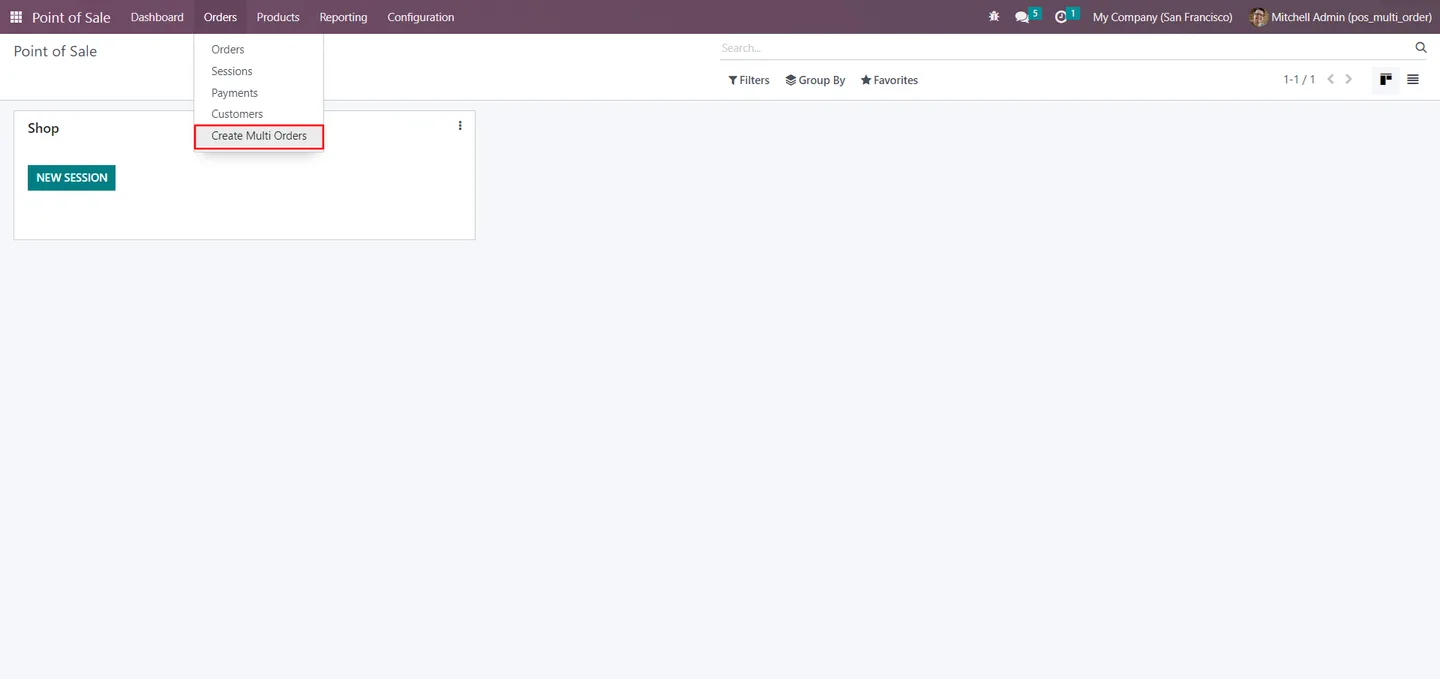
Navigate to Point of Sale → Orders. A new Create Multi Order tab appears alongside the standard order list — click it to open the bulk-creation form.
- 4
Pick the POS, payment method, customers, and products
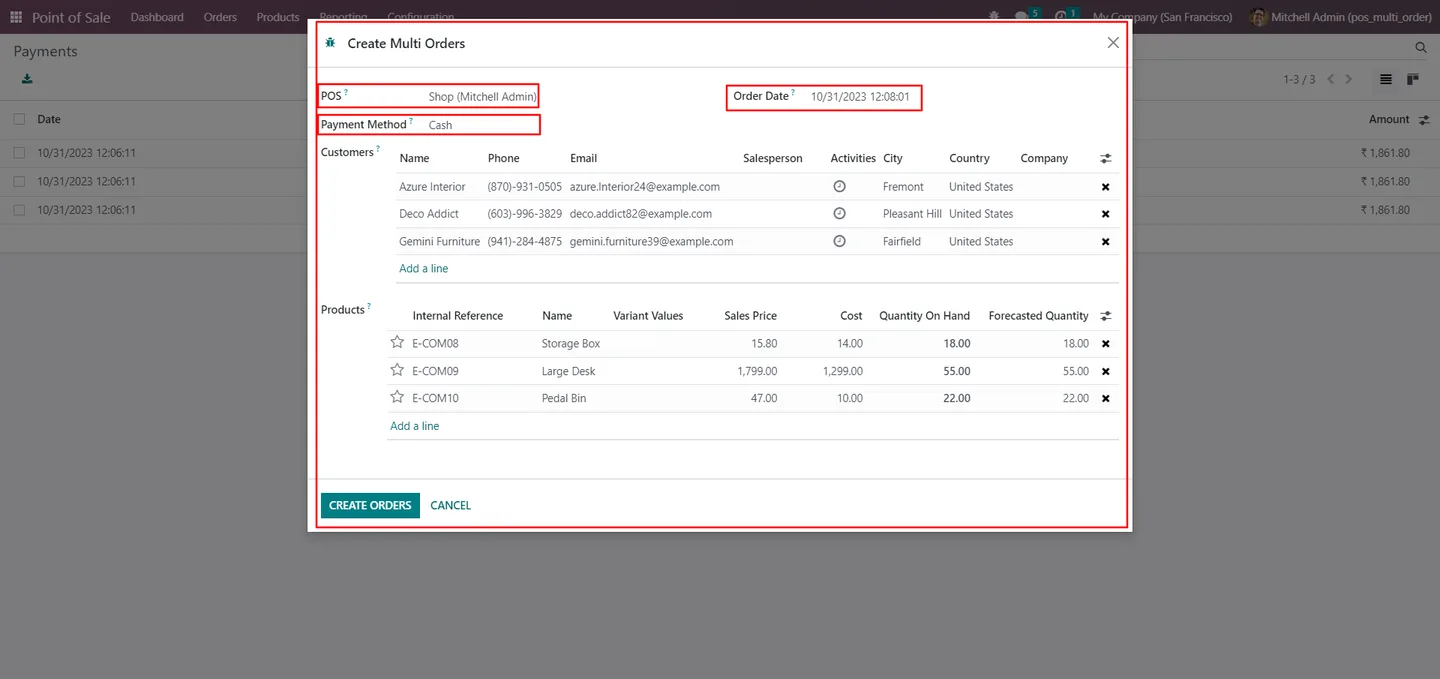
In the popup, select the configured POS shop, the payment method, one or many customers (using checkboxes), and the products to include in each order.
- 5
Submit and review
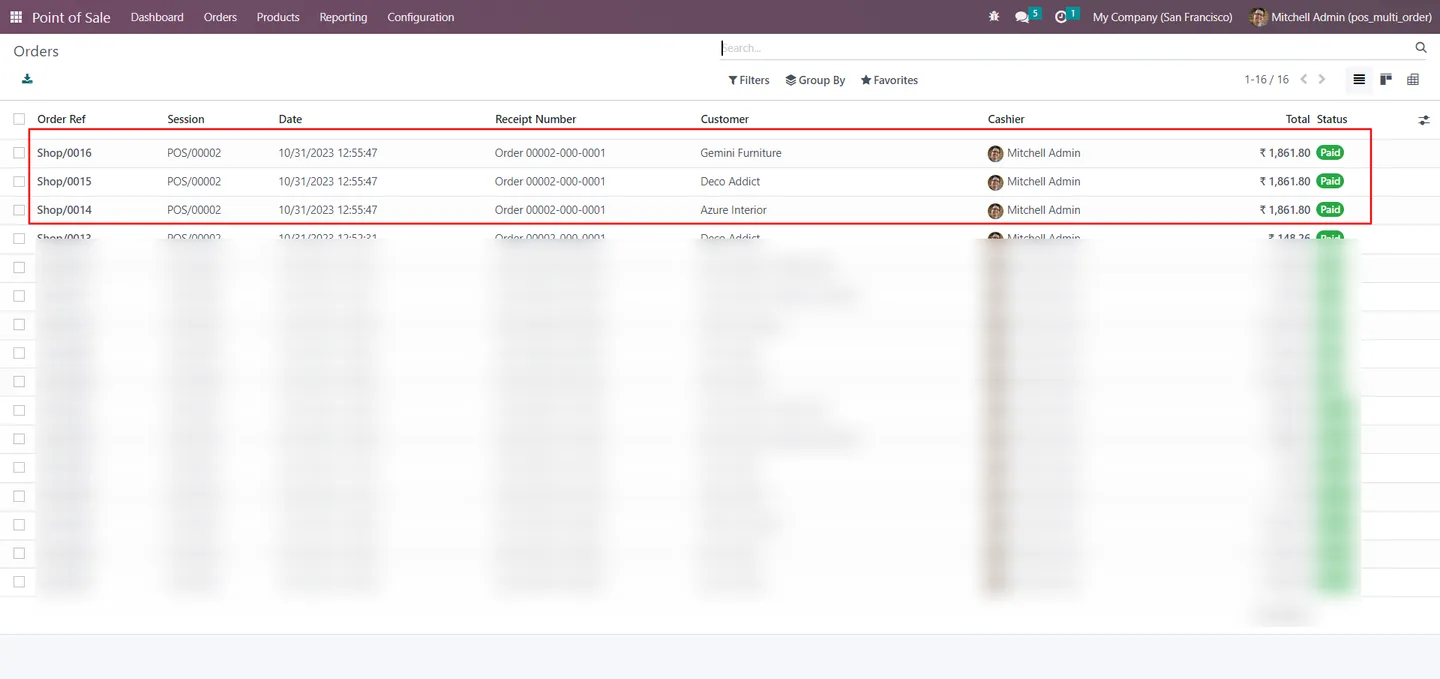
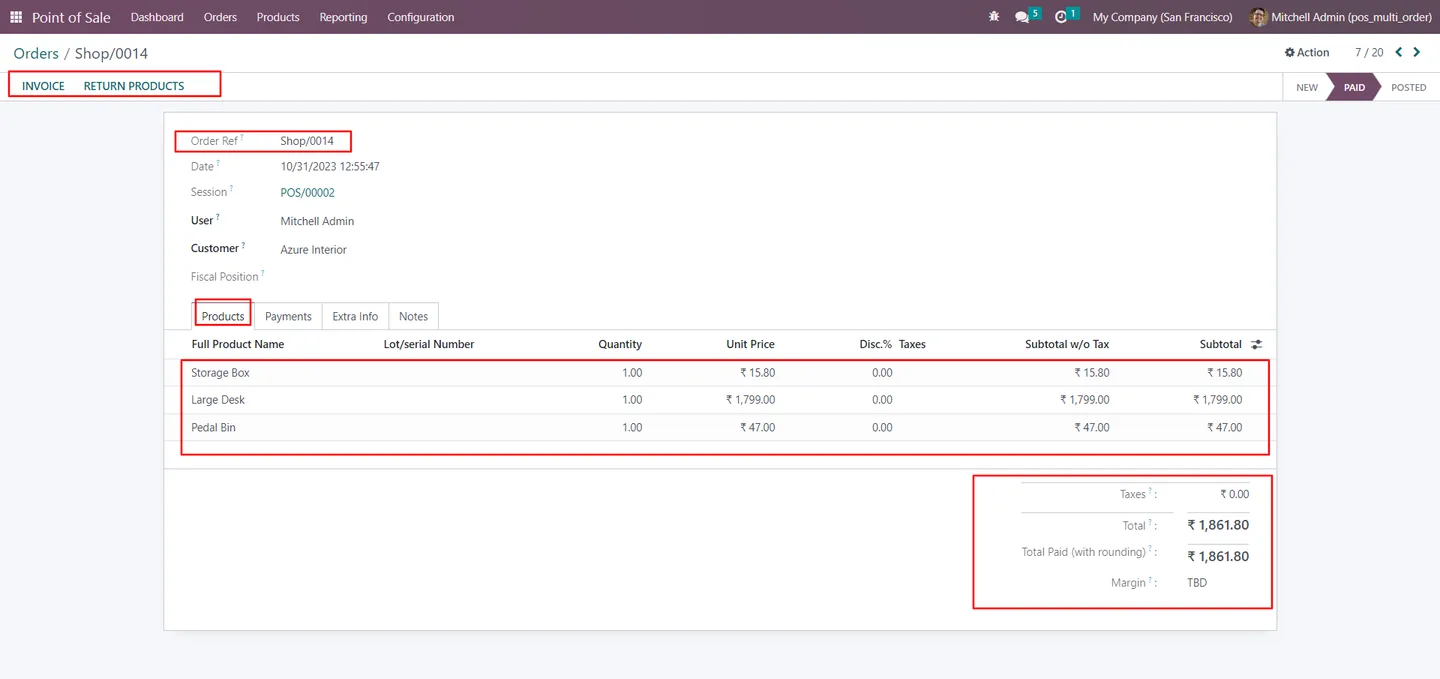
Submit the form to create the orders. Navigate to Point of Sale → Orders → Orders to see the new POS orders, each with its own unique receipt number, ready to post.
- 6
Post journal entries
From the order list, post a journal entry against each new POS order so the bulk batch flows through to accounting without a manual reconciliation later.
Frequently asked questions
-
Which Odoo versions and editions are supported?
The module is published for Odoo 16.0 and 17.0, in both Community and Enterprise. Standard Point of Sale, Inventory, and Invoicing apps need to be installed first.
-
How do customers each get their own receipt?
The module creates one POS order per selected customer, with its own unique receipt number, so each customer has an individual printed receipt and audit trail — even when the batch shared a single payment.
-
Can a batch include different products per customer?
The Create Multi Order screen applies the selected products across the chosen customers in a single batch. For batches where every customer needs a different basket, run the multi-order flow once per basket rather than once per session.
-
Does inventory update in real time?
Yes. Real-time inventory updates deduct stock as each order in the batch is created, so stock levels stay accurate and the team can avoid overstock or stockouts.
-
How does payment work for a bulk batch?
Payments can be consolidated for a group of orders so the cashier processes one transaction for the whole batch — useful for corporate gift orders, restaurant group bookings, and split-cheque scenarios.
-
Does it post accounting entries?
Yes. After the batch is created, you can post a journal entry against each POS order so revenue and stock movements flow into Accounting without a separate end-of-day reconciliation.
-
Who is this for?
Retail stores running bulk gift orders, restaurants splitting group bookings, and B2B counters processing recurring repeat orders are the main fits — anywhere a cashier would otherwise repeat the same POS flow many times in a row.
-
Is support included?
Yes. The module includes 90 days of bug-fix support, Monday to Friday, 10:00–19:00 IST.
Listing verified against the Odoo App Store:
Related solutions
Whole-platform solutions that complement Create Multi POS Orders.
Related services
Get the most out of this module with senior TechUltra consultants.
Odoo Customization Services
Odoo customization from a Gold Partner: custom modules, workflows, reports and Studio changes, written upgrade-safe and quoted at a fixed scope. Free scoping call.
Hire Odoo Developers
Hire certified Odoo developers from a Gold Partner: one developer or a team, full-time or part-time, 70–160 hours a month. Silver, Gold or Platinum plan, free trial.
Odoo Support Services & Maintenance
Odoo support services from a Gold Partner: functional and technical support plus server cover for Enterprise and Community, 30-minute P1 response, 24/7 option.







