

Odoo App · Accounting & Finance
Manual Currency Rate
Set a custom currency rate on Odoo quotations, orders, invoices, bills, and payments.

Overview
Companies trading internationally often need to record a transaction at a rate other than the daily ECB or system rate — a negotiated rate with a supplier, a forward contract, or the actual rate from the day the payment cleared. Odoo's standard currency handling does not expose a per-transaction override.
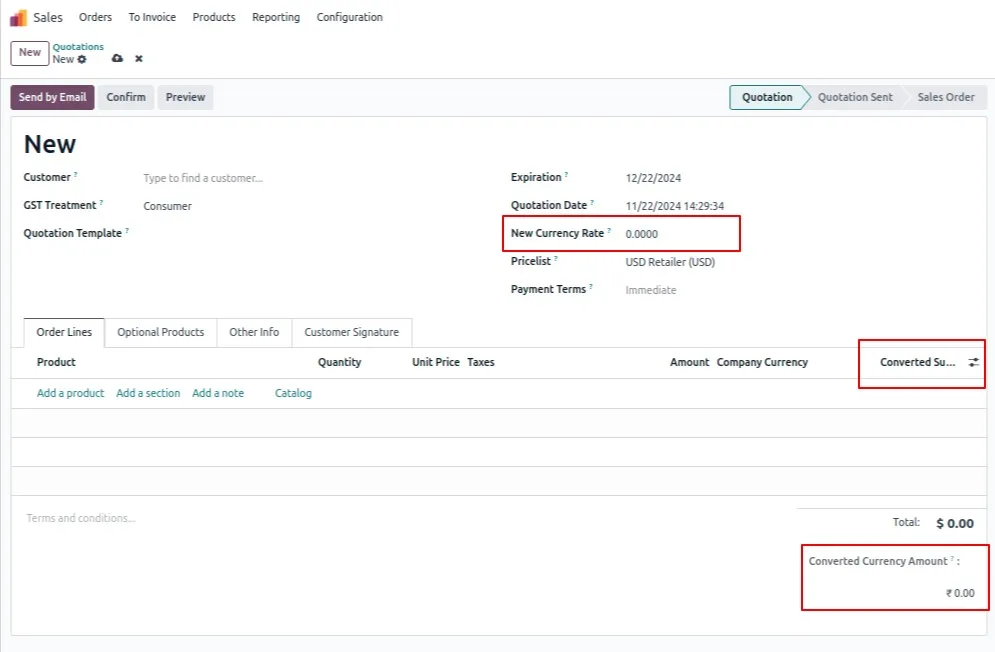
Built by TechUltra Solutions, Manual Currency Rate adds a New Currency Rate field across the documents finance teams touch most: quotations, sales orders, purchase orders, requests for quotation, customer invoices, vendor bills, credit notes, debit notes, and payments. The converted amount, exchange-rate display, and accounting entry update automatically.
The module also lets accountants re-enter the rate at payment registration when the rate has moved between order and settlement, and it supports conversion across multiple currencies in the same workflow — reducing manual workarounds and the reconciliation errors they cause.
Key features
-
New Currency Rate button on transactions
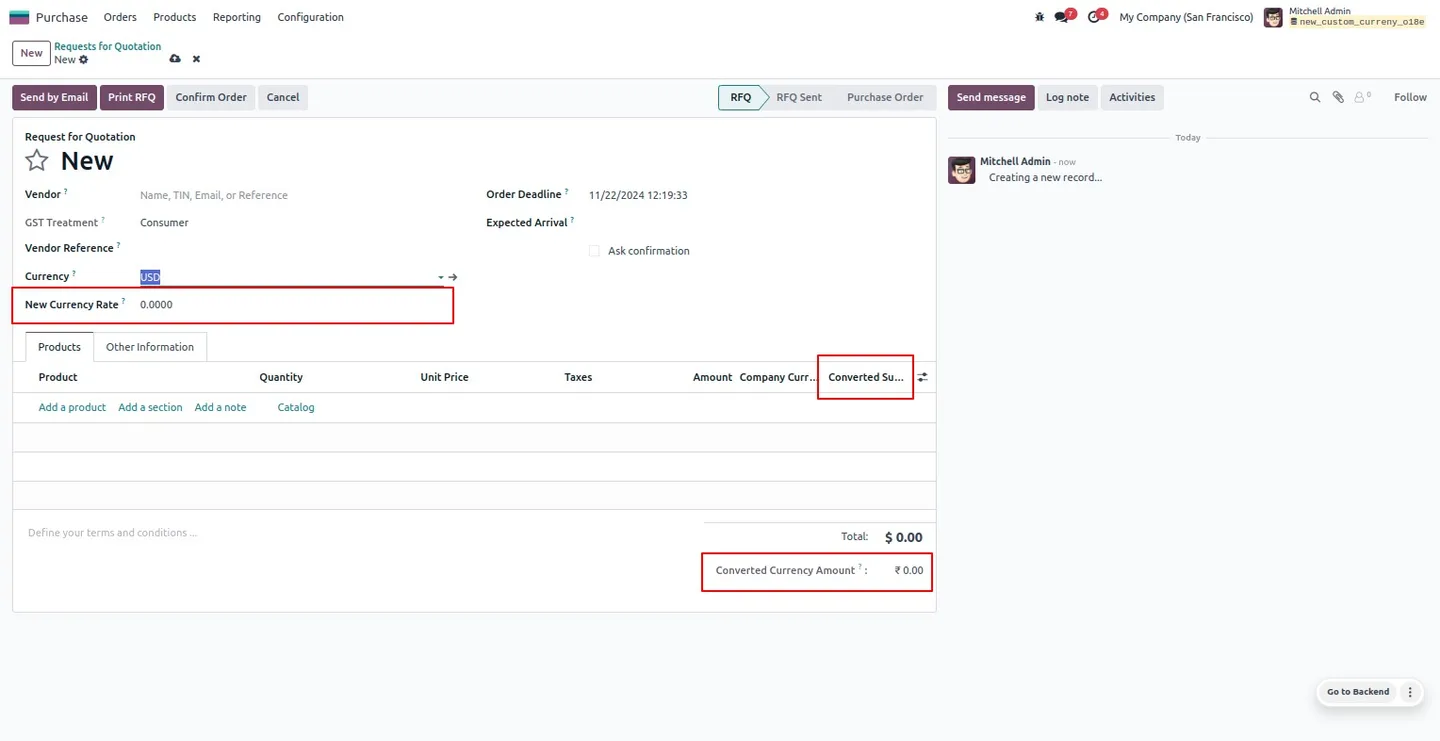
Add a fresh currency rate directly on quotations, sales orders, purchase orders, RFQs, invoices, bills, and credit and debit notes, without changing the company-wide rate.
-
Automatic conversion calculation
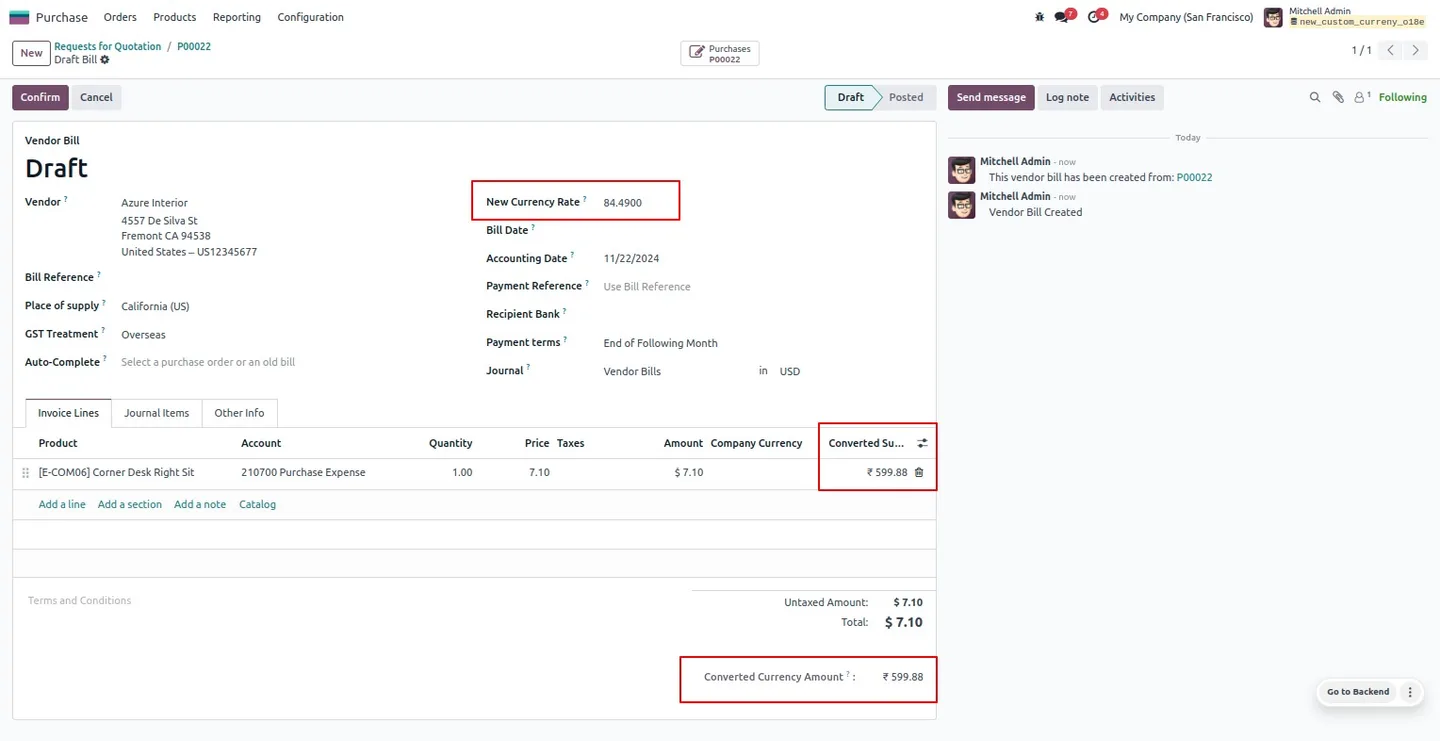
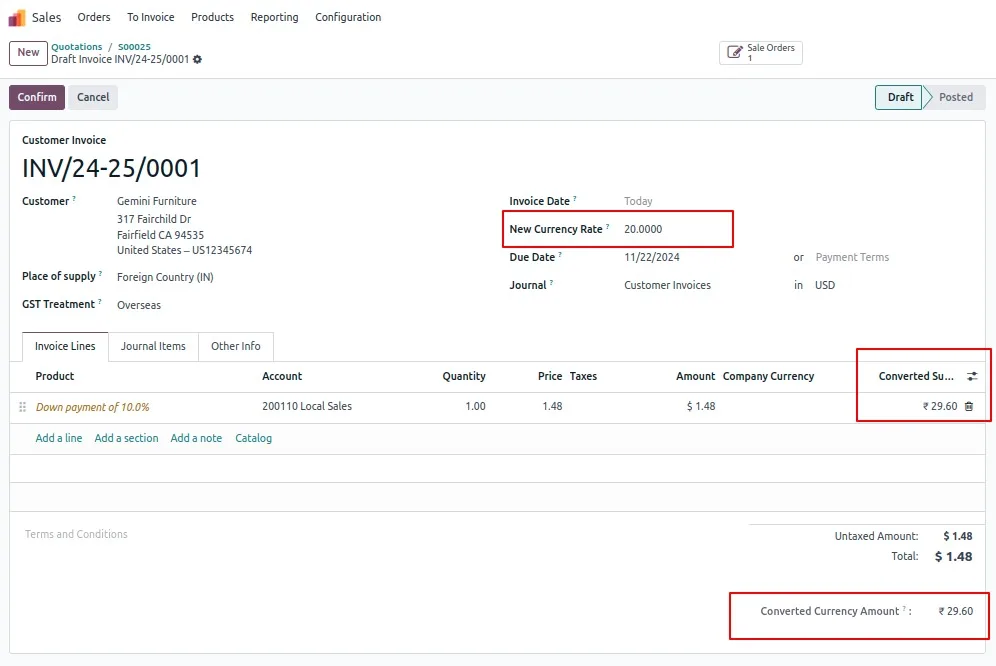
The system automatically computes the converted amount as soon as a rate is entered, so totals stay correct without manual arithmetic.
-
Exchange-rate display
Shows the calculated exchange rate inside the currency-rate interface, making it easy for accountants to see exactly what rate was applied to a document.
-
Automatic journal entry for converted amount
Generates the journal entry for the converted amount, so the accounting records and the document totals stay in sync.
-
Currency-amount difference visibility
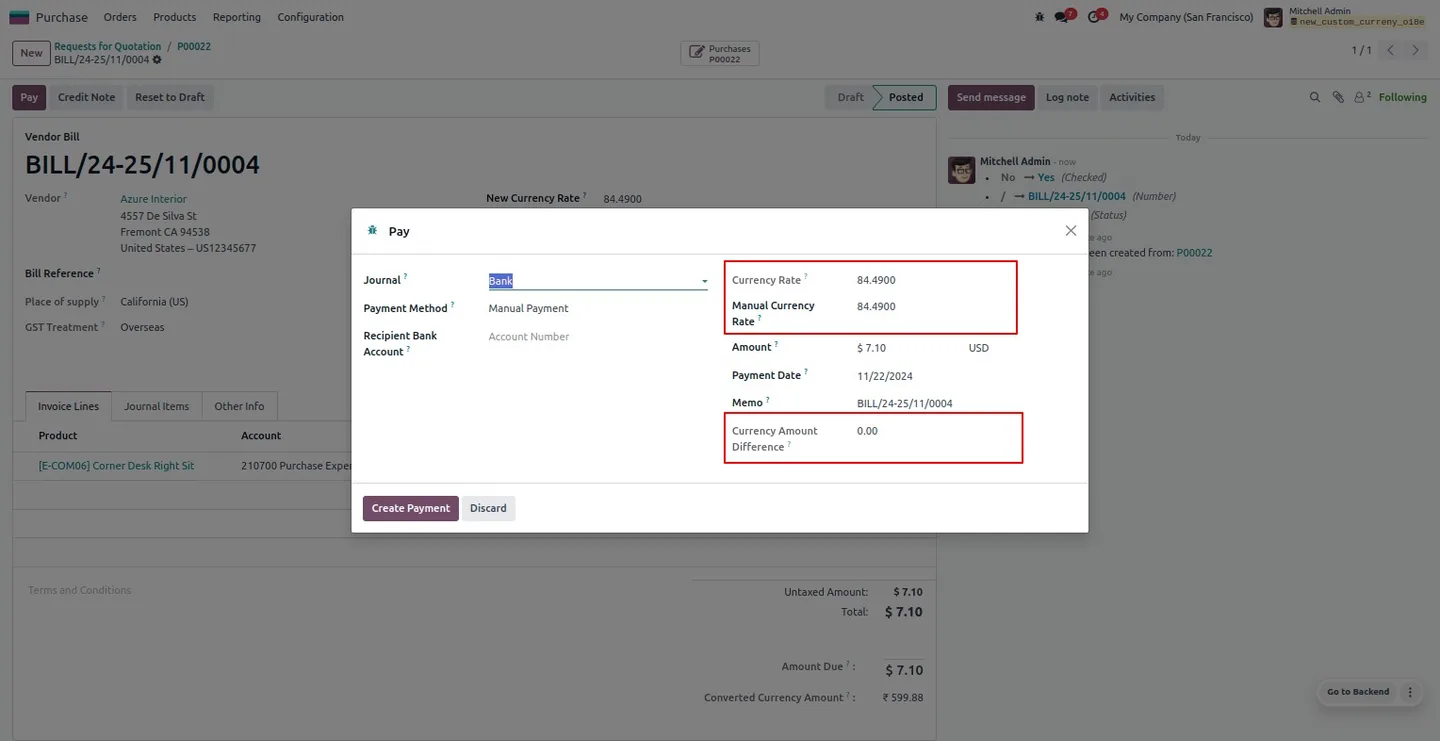
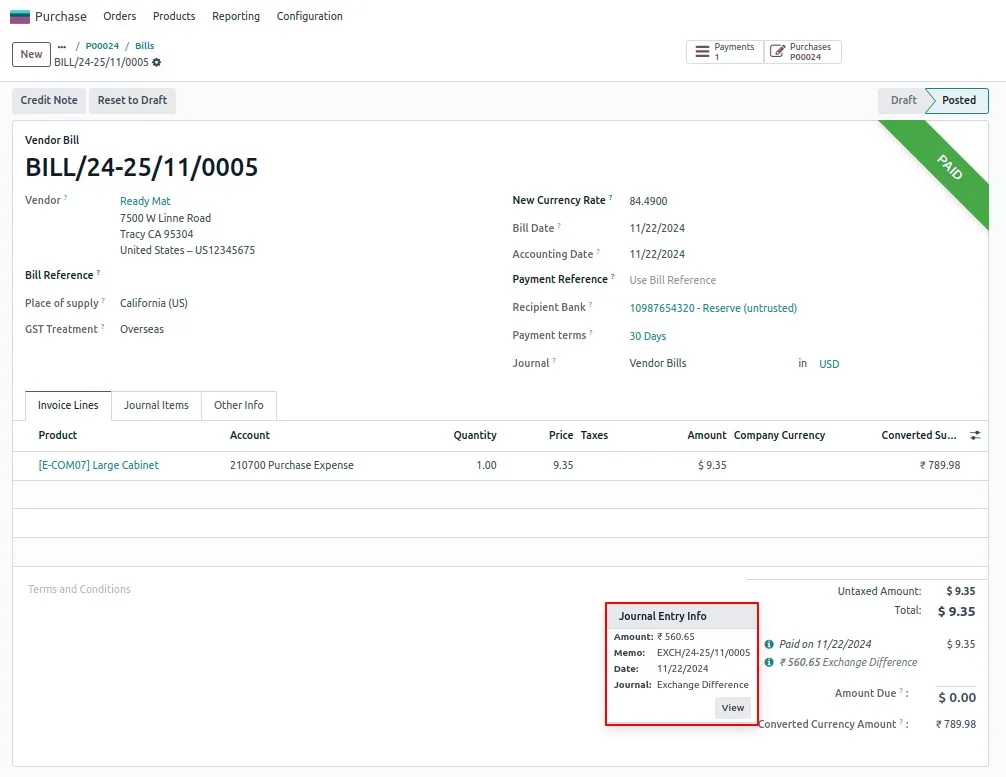
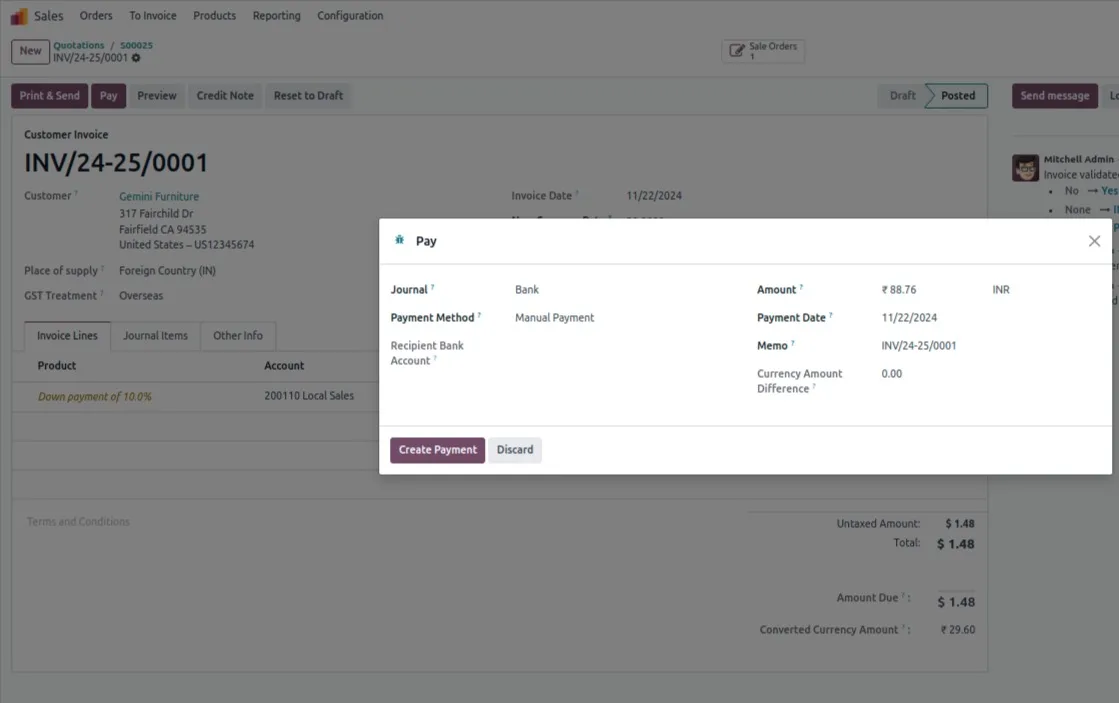
Users can see the positive or negative difference produced when a rate is adjusted, which makes exchange-gain and exchange-loss handling transparent.
-
Currency rate documentation in records
Displays the exchange rate inside the currency-rate records for clean reference and audit tracking.
-
Multi-currency conversion
Supports conversion across three different currencies simultaneously, useful for groups operating in more than two markets.
-
Manual rate adjustment at payment
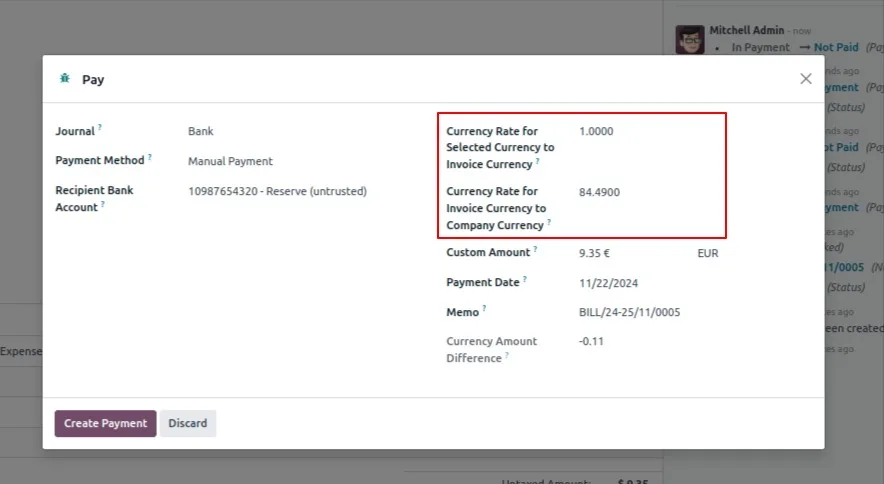
Re-enter or change the currency rate when registering a payment whose register-payment date differs from the original sales or purchase date.
-
Broad workflow coverage
Works across quotations, sales orders, purchase orders, refunds, and credit notes — not only on invoices — so the override is consistent end-to-end.
Manual Currency Rate in Odoo
Every screen, in the order you meet it — configuration first, then the module in use.

Technical details
Specification
- Publisher
- TechUltra Solutions Private Limited
- Technical name
- tus_custom_currency_rate
- Odoo versions
- 16.0, 17.0, 18.0, 19.0, 20.0
- Lines of code
- 1,126
- License
- Odoo Proprietary License v1.0 (OPL-1)
- Price
- $23 (one-time)
Deployment
- Odoo Online
- Odoo.sh
- On-premise
Odoo dependencies
- Inventory
- Sales
- Purchase
- Invoicing
- Discuss
Support
90 days of bug-fix support, Monday to Friday (10:00–19:00 IST). Raise a ticket at support@techultra.in.
Setup & configuration
From install to first call — here is the path.
- 1
Install the module
In Odoo, open Apps, remove the Apps filter, search for “Manual Currency Rate”, and click Install.
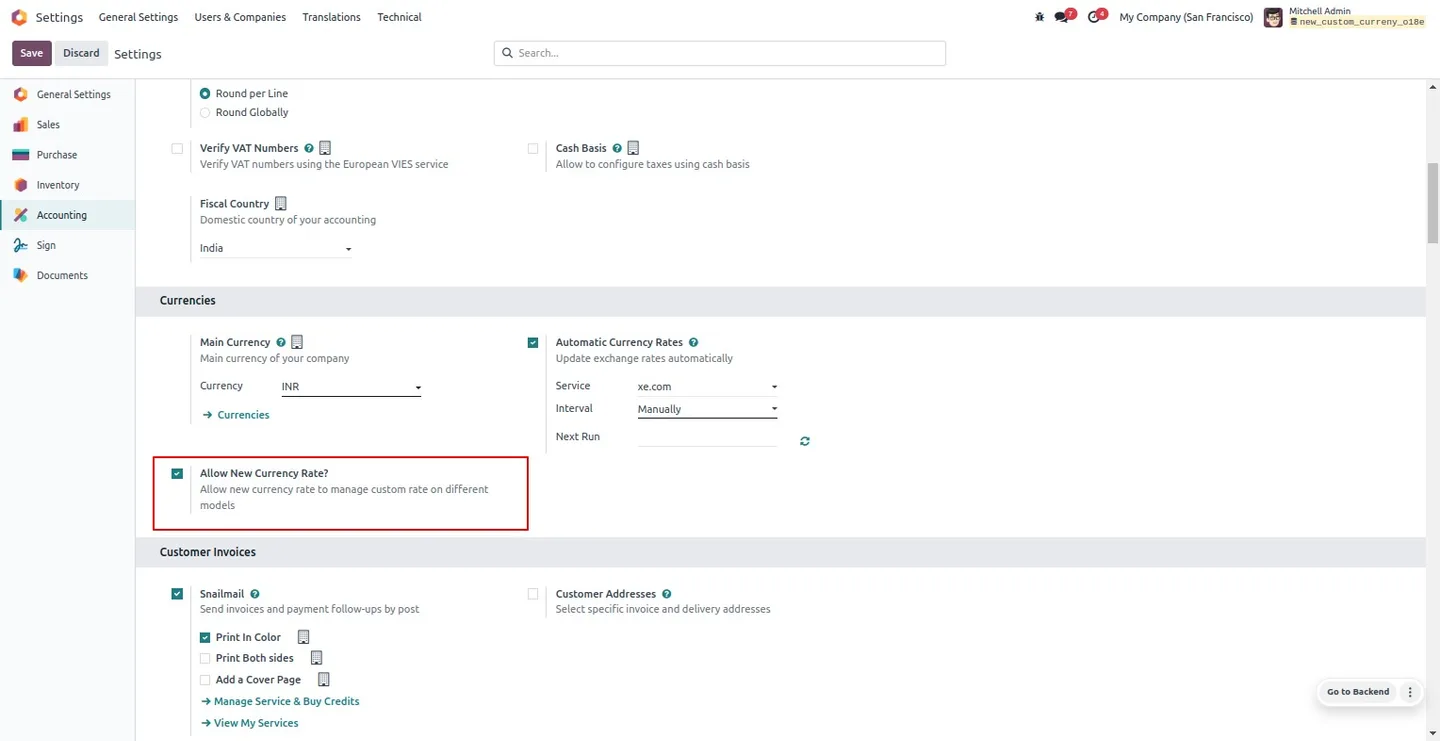
- 2
Enable the feature
Go to Settings → General Settings and enable Allow new currency rate so the override field becomes available across the workflow.
- 3
Enter a rate on a transaction
Open a quotation, sales order, purchase order, RFQ, invoice, bill, credit note, or debit note. The New Currency Rate field is now required — enter the rate to use for this document.
- 4
Review the converted amount
The system automatically computes the converted amount and updates the totals. The exchange rate is shown inline so accountants can verify what was applied.
- 5
Adjust the rate at payment registration
When registering a payment whose date differs from the source document, update the Manual currency rate field in the payment wizard to reflect the rate actually applied.
- 6
Reconcile in the accounting dashboard
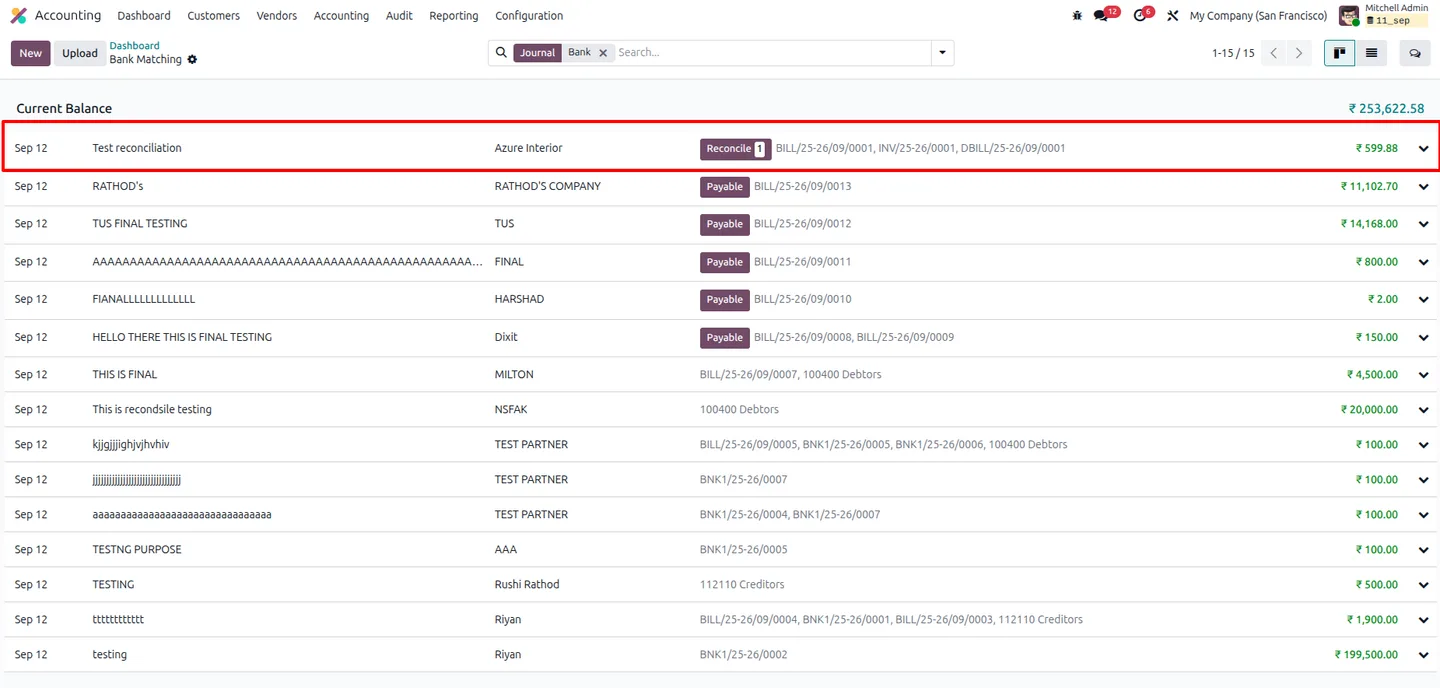
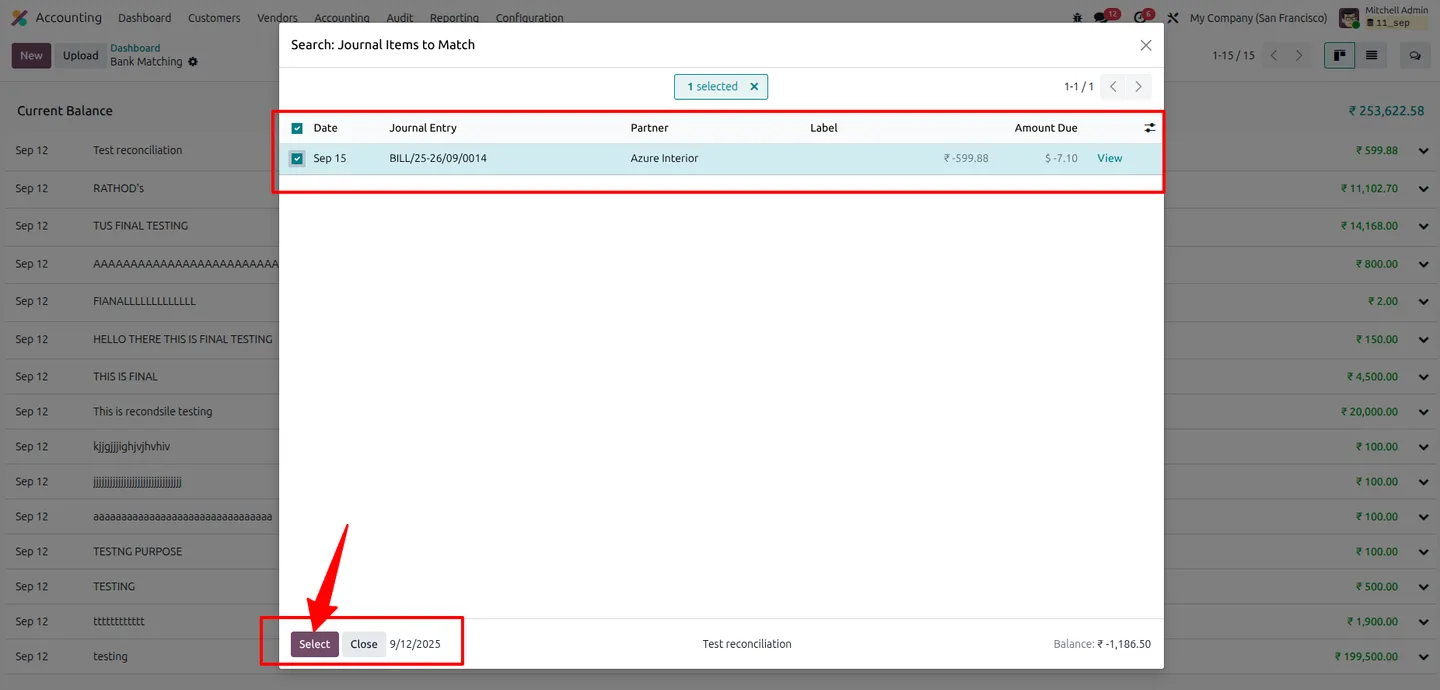
On the accounting dashboard, create a reconciliation entry matching the partner and amount from the bill or invoice, then click Reconcile to match the transactions cleanly.
Frequently asked questions
-
Why not just update the company-wide currency rate?
Updating the global rate affects every transaction posted on that date, which is rarely what finance teams want. Manual Currency Rate lets you override the rate on a single quotation, order, invoice, bill, or payment without touching the system-wide table.
-
Which documents support the manual rate?
Quotations, sales orders, purchase orders, requests for quotation, customer invoices, vendor bills, credit notes, debit notes, refunds, and payments. The field flows through the chain so the same rate applies end-to-end.
-
Does the converted amount and journal entry update automatically?
Yes. As soon as a rate is entered, Odoo recomputes the converted amount and posts the matching journal entry, so accounting and document totals stay aligned.
-
Can I change the rate at the payment step?
Yes. The payment wizard exposes a Manual currency rate field so accountants can re-enter the rate when the payment date differs from the original sale or purchase date.
-
Does it handle exchange gains and losses?
The module surfaces the positive or negative difference produced by a rate adjustment, which makes downstream exchange-gain and exchange-loss handling visible to the accountant.
-
How many currencies can be involved in a single workflow?
The module supports conversion across three different currencies simultaneously, which covers most multi-currency trading patterns without forcing extra entries.
-
Which Odoo versions are supported?
The module supports Odoo 16.0, 17.0, 18.0, 19.0, and 20.0, in both the Community and Enterprise editions.
-
Is the New Currency Rate field optional?
When the feature is enabled in General Settings, the field becomes mandatory on supported documents — this is intentional so transactions are not posted at an unintended rate.
Listing verified against the Odoo App Store:
Related solutions
Whole-platform solutions that complement Manual Currency Rate.
Odoo Accounting
Odoo Accounting — multi-entity, multi-currency, bank-feed integration, reconciliation, deferred revenue, GAAP / IFRS. 60+ country localisations.
Odoo as Accounting Software
Odoo Accounting standalone — alternative to QuickBooks, Tally, Xero, Zoho Books. Real GL, multi-entity, statutory compliance, scales into full ERP.
E-Invoicing on Odoo
Native e-invoicing for Odoo — India GST, Italy FatturaPA, Saudi ZATCA, Mexico CFDI, EU EN 16931. IRN registration, statutory submission, audit archives.
Related services
Get the most out of this module with senior TechUltra consultants.
Odoo Customization Services
Odoo customization from a Gold Partner: custom modules, workflows, reports and Studio changes, written upgrade-safe and quoted at a fixed scope. Free scoping call.
Hire Odoo Developers
Hire certified Odoo developers from a Gold Partner: one developer or a team, full-time or part-time, 70–160 hours a month. Silver, Gold or Platinum plan, free trial.
Odoo Support Services & Maintenance
Odoo support services from a Gold Partner: functional and technical support plus server cover for Enterprise and Community, 30-minute P1 response, 24/7 option.







