

Odoo App · Accounting & Sales
Customer Credit Limit Approval
Enforce per-customer credit limits on Odoo sales orders with a multi-level approval flow.
Overview
Customer Credit Limit Approval adds credit control to the Odoo sales process. You set a warning amount and a blocking amount on each customer, and when a sales order is confirmed the module compares the customer's outstanding balance against those limits.
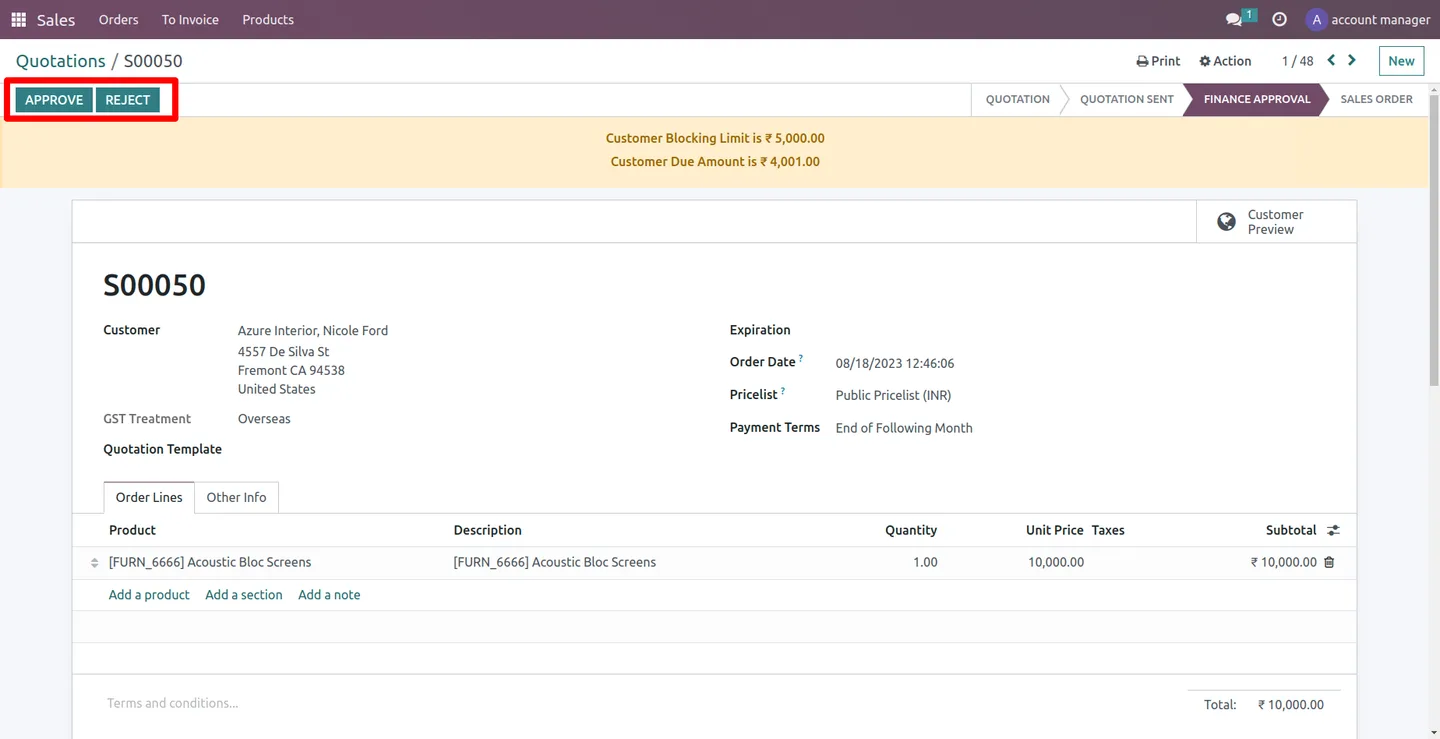
Built by TechUltra Solutions, it then does one of two things depending on the customer's settings: it shows a warning and lets the salesperson continue, or it blocks confirmation entirely. A blocked order moves into a multi-stage approval — a Sales Manager reviews it first, then an Account Manager — before it can be confirmed.
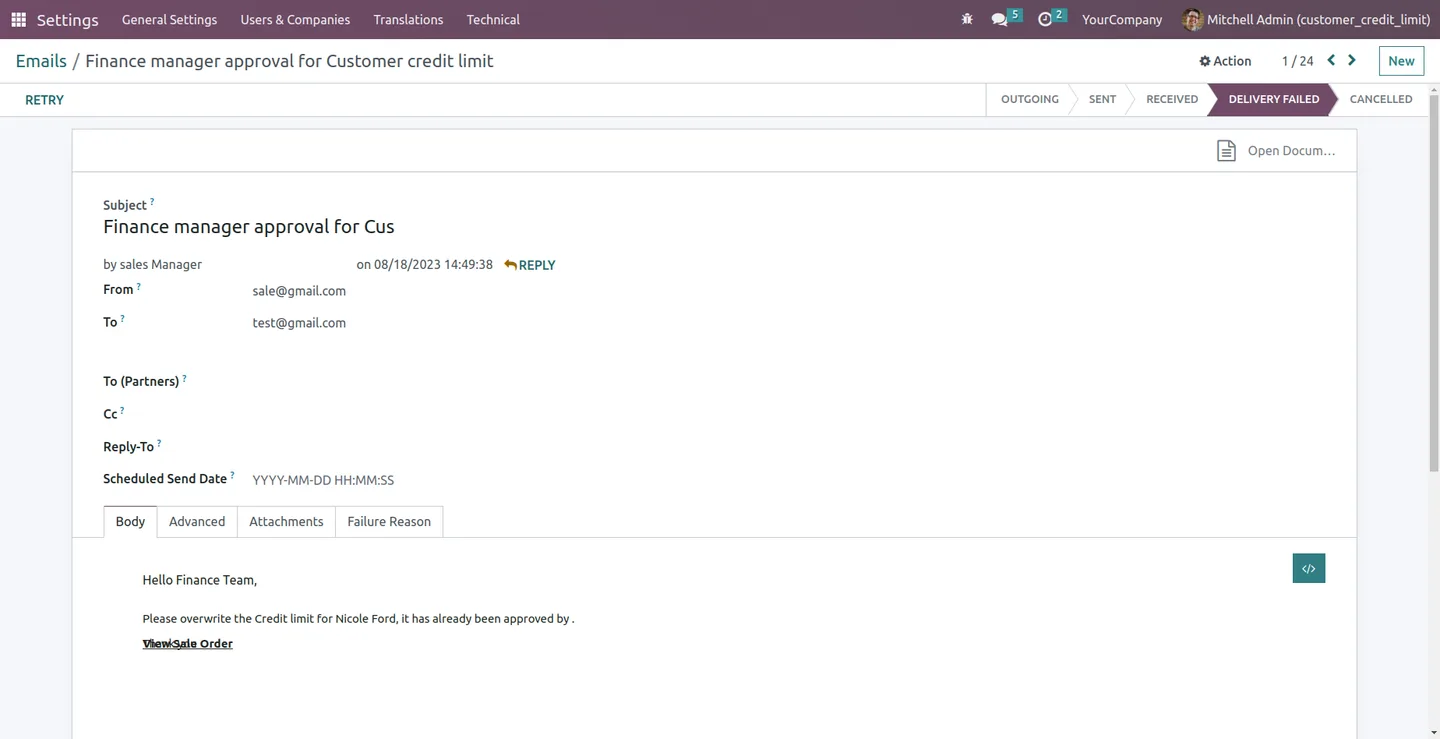
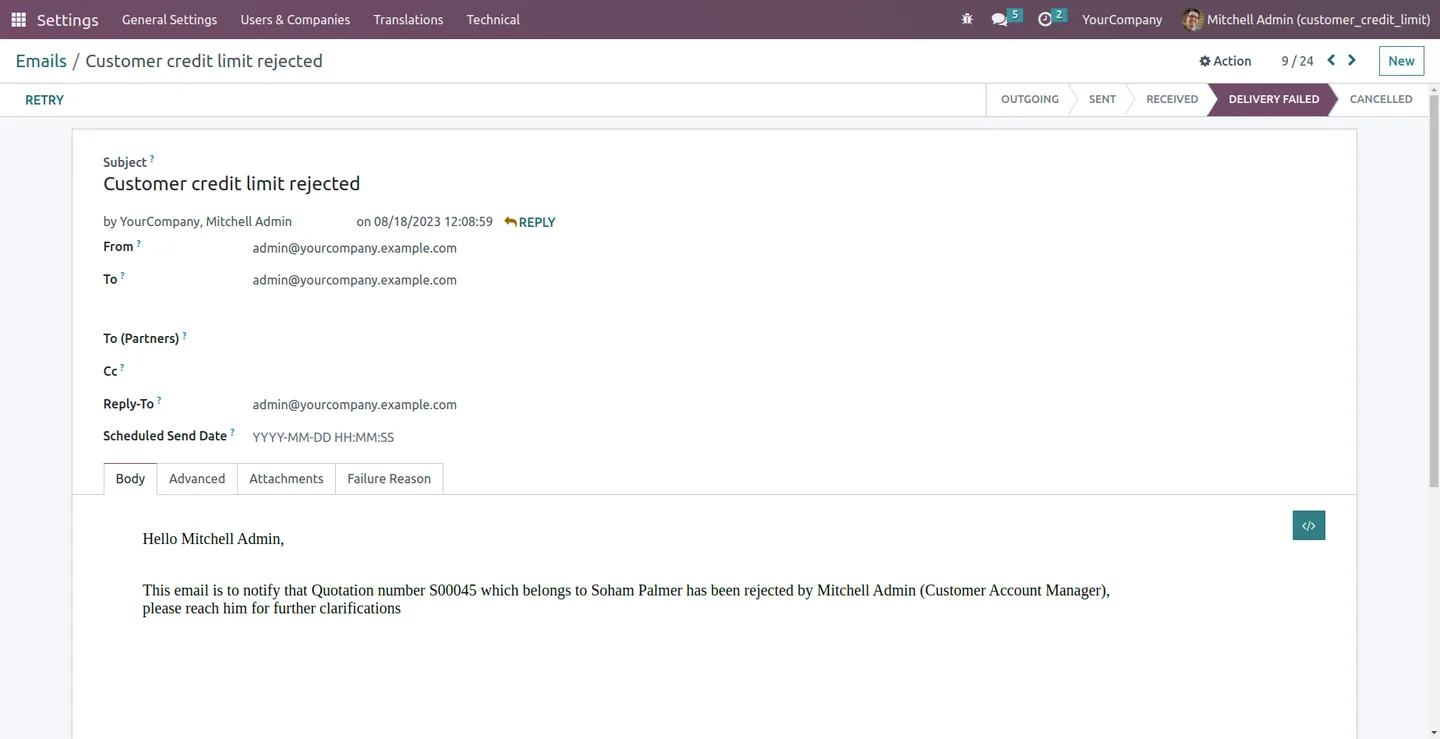
Email notifications are sent at each step, so the right people know an order is waiting on them and the salesperson learns the outcome. If an order is rejected, the customer can be notified too. Role-based access keeps the approval rights with ERP Managers, Sales Managers, and Account Managers.
Key features
-
Per-customer credit limits
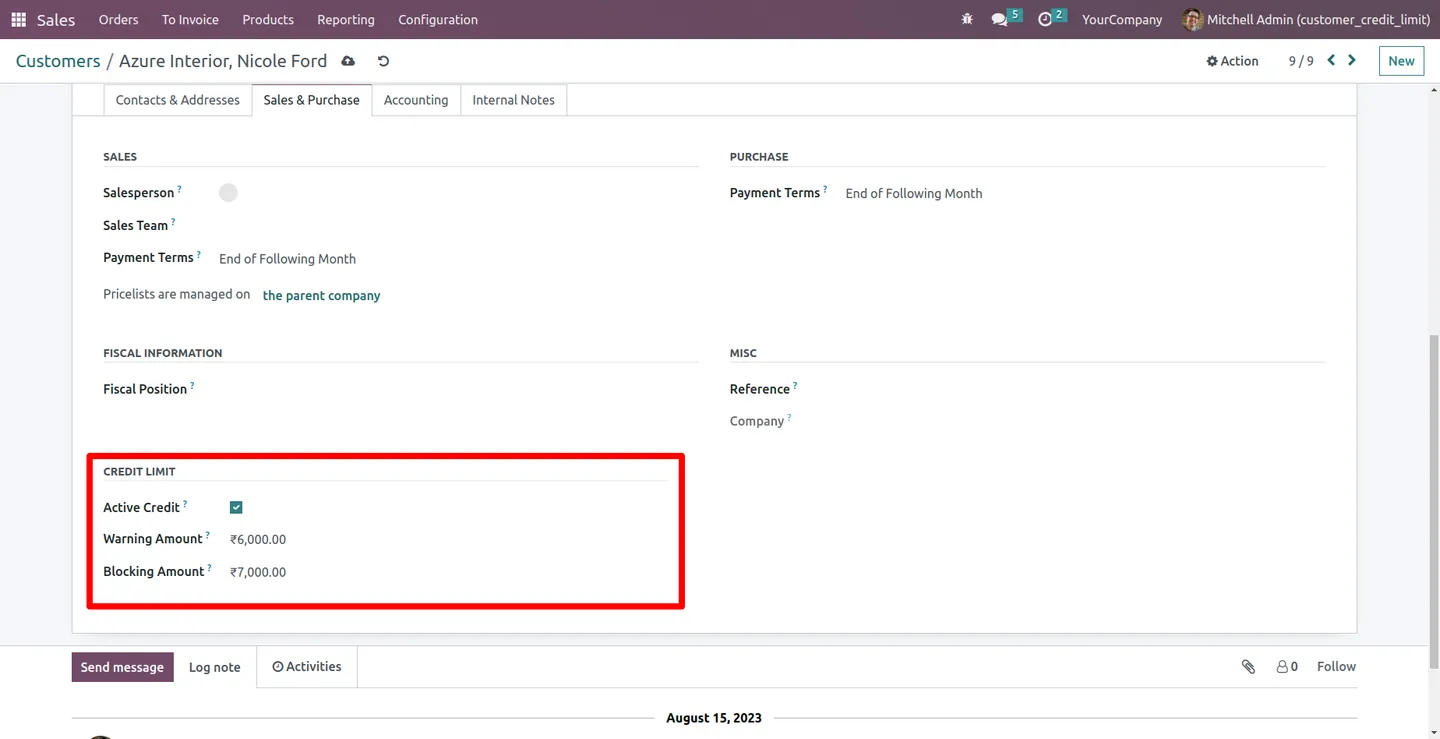
Set a warning amount and a blocking amount on each customer record, so credit control reflects the real risk profile of every account.
-
Credit check on order confirmation
When a sales order is confirmed, the module compares the customer's outstanding balance against their configured limit in real time.
-
Warn or block over-limit orders
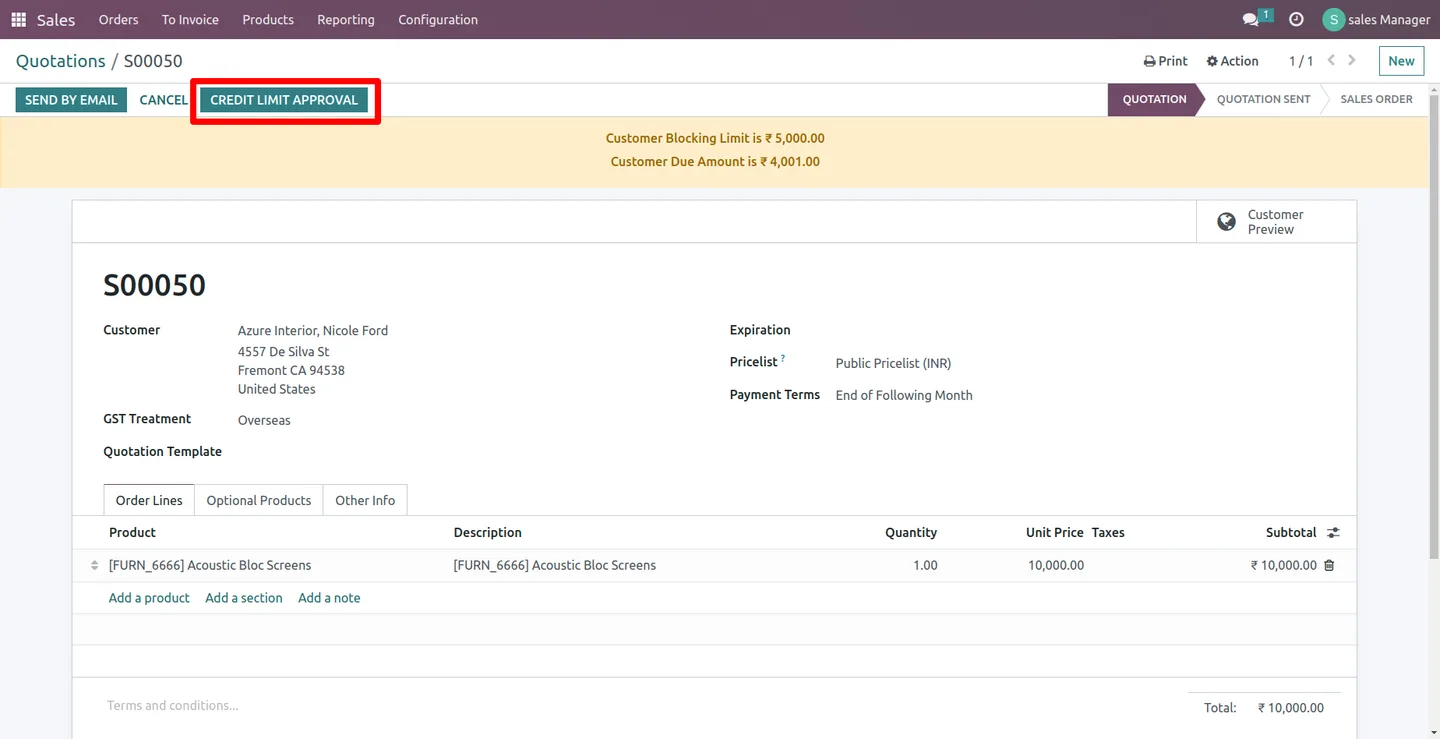
Depending on the customer's setting, an over-limit order either raises a warning the salesperson can pass, or is blocked from confirmation until approved.
-
Multi-level approval workflow
A blocked order goes to a Sales Manager for the first review, then to an Account Manager, before it can move forward — a clear two-stage sign-off.
-
Role-based access control
Approval rights are granted through dedicated roles for ERP Manager, Sales Manager, and Account Manager, so only authorised staff can release a held order.
-
Final confirmation after approvals
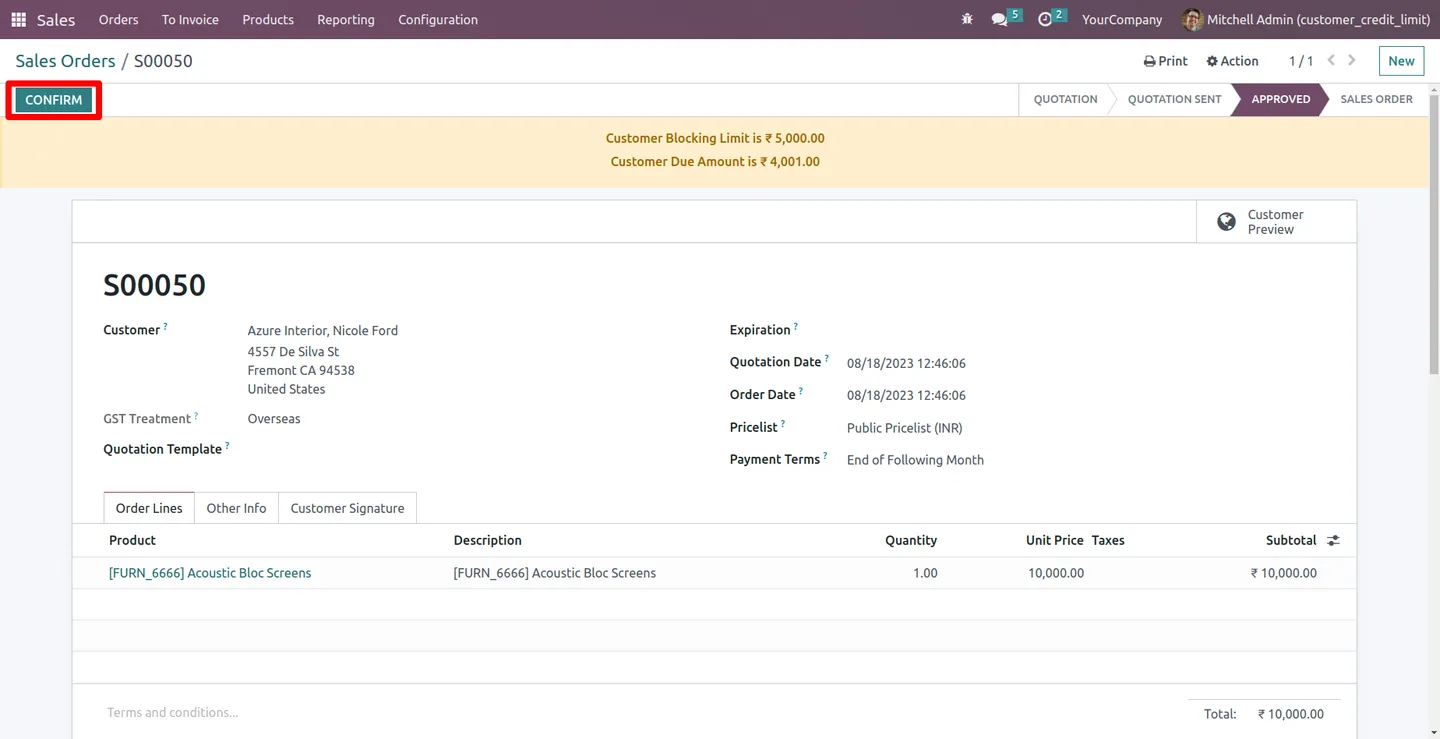
Once both approval stages are complete, the order can be confirmed, closing the loop between credit control and the normal sales flow.
-
Email notifications at each stage
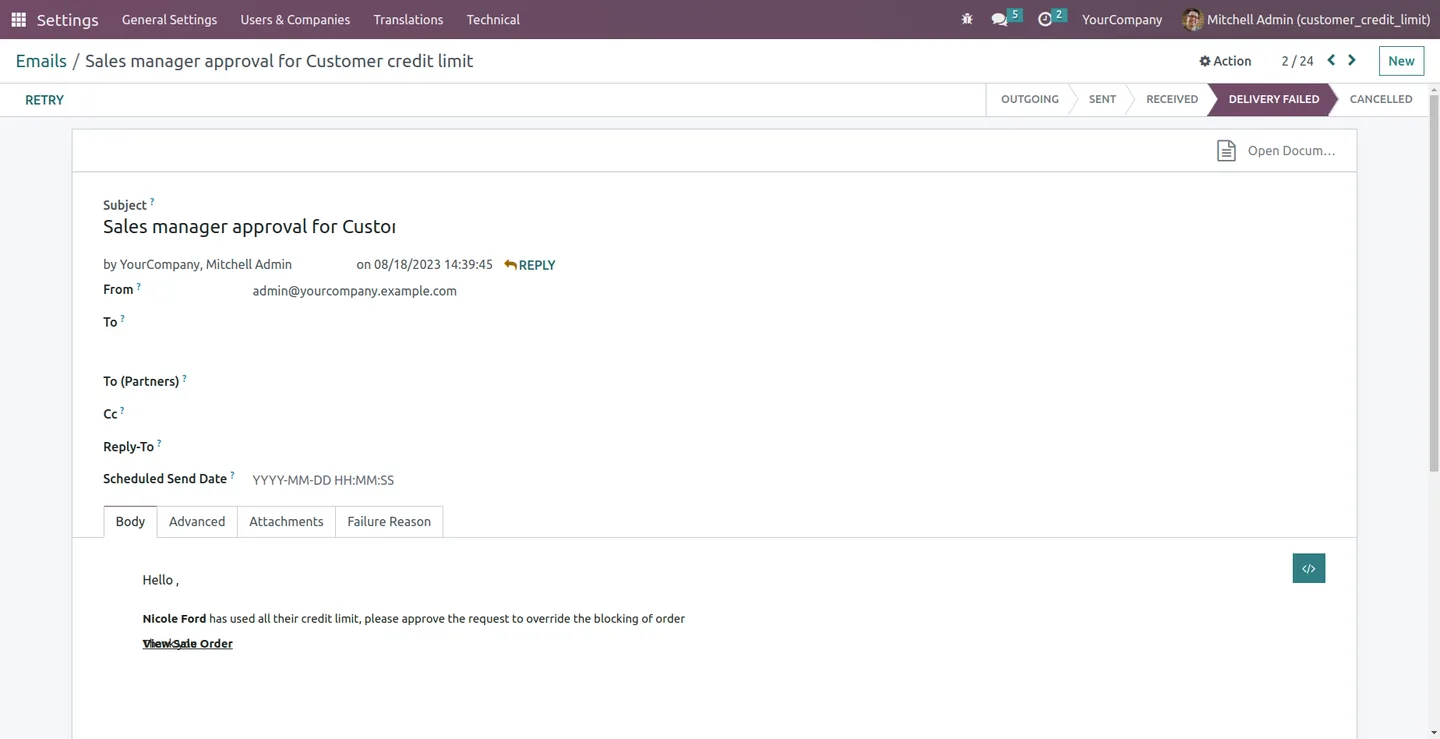
The workflow sends emails as an order moves between stages, so each approver knows when a sales order is waiting on their decision.
-
Rejection notifications
When an order is rejected, a notification can be sent to the customer, so the sales conversation stays clear without manual follow-up.
Customer Credit Limit Approval in Odoo
Every screen, in the order you meet it — configuration first, then the module in use.
Technical details
Specification
- Publisher
- TechUltra Solutions Private Limited
- Technical name
- sale_account_manager_customer_credit_limit_approval
- Odoo versions
- 16.0, 17.0, 18.0, 19.0
- Lines of code
- 405
- License
- Odoo Proprietary License v1.0 (OPL-1)
- Price
- Free
Deployment
- Odoo Online
- Odoo.sh
- On-premise
Odoo dependencies
- Sales
- Invoicing
- Discuss
Support
90 days of bug-fix support, Monday to Friday (10:00–19:00 IST). Raise a ticket at support@techultra.in.
Setup & configuration
From install to first call — here is the path.
- 1
Install the module
In Odoo, open Apps, remove the Apps filter, search for “Customer Credit Limit Approval”, and click Install.
- 2
Assign the approval roles
In Settings → Users, give the relevant people the Sales Manager and Account Manager roles, and confirm ERP Manager access where needed, so the approval steps route to the right staff.
- 3
Set credit limits on customers
Open each customer record and enter the warning amount and the blocking amount, and choose whether an over-limit order should warn or block.
- 4
Confirm a test sales order
Create a sales order for a customer near their limit and confirm it to see the warning or the block trigger as configured.
- 5
Run an order through the approvals
Have the Sales Manager and then the Account Manager approve a blocked order, then confirm it, and check that the email notifications arrive at each stage.
Frequently asked questions
-
How does the credit check work?
When a sales order is confirmed, the module compares the customer's outstanding balance against the credit limit set on their customer record. If the order would exceed the limit, Odoo warns or blocks it.
-
What is the difference between a warning and a block?
A warning lets the salesperson see the over-limit message and still continue. A block stops the order from being confirmed until a Sales Manager and an Account Manager have approved it.
-
Who can approve an over-limit order?
Approval rights are role-based. A Sales Manager reviews a blocked order first, then an Account Manager, with ERP Manager access available for broader administration.
-
Are credit limits set globally or per customer?
Per customer. Each customer record holds its own warning amount and blocking amount, so limits match the risk of each account.
-
Does the workflow send notifications?
Yes. Emails are sent as an order moves between approval stages, so each approver knows when an order is waiting, and a rejection can notify the customer.
-
Which Odoo versions are supported?
The module supports Odoo 16.0, 17.0, 18.0, and 19.0, in both the Community and Enterprise editions.
-
Is the module free?
Yes. Customer Credit Limit Approval is free to install from the Odoo App Store.
-
Is support included?
Yes. The module includes 90 days of bug-fix support, Monday to Friday, 10:00–19:00 IST.
Related services
Get the most out of this module with senior TechUltra consultants.
Odoo Customization Services
Tailored Odoo customizations from a Gold Partner — 200+ projects, upgrade-safe patterns, fixed-scope quotes, senior consultants. Free demo consultation.
Hire Odoo Developers
Hire certified Odoo developers from a Gold Partner — 400+ implementations, 92% satisfaction, Odoo since 2016. Silver / Gold / Platinum packages, free trial.
Odoo Support & Maintenance
Odoo Gold Partner support — 24/7 functional, technical, and server coverage for Enterprise and Community editions. Fast turnaround, free consultation.







